

%20in%20SQL%20Server%20(1).avif)
Data security at rest is a standard requirement for meeting compliance guidelines and protecting critical enterprise assets. In Microsoft SQL Server, Transparent Data Encryption (TDE) serves as a built-in security feature engineered specifically to secure database files at rest.
TDE performs real-time, I/O-level encryption and decryption on:
- Database data files (.mdf, .ndf)
- Transaction log files (.ldf)
- Database backup files (.bak)
This feature is called transparent because it secures data automatically at the storage level, requiring no changes to application code or queries. Authorised users and applications can read and write data normally, while the physical files on disk remain completely unreadable to unauthorised parties.
What TDE Protects:
TDE is designed to mitigate risk in scenarios where physical storage media or backup files are compromised. Key protection scenarios include:
- Database files (.mdf/.ldf) stolen directly from the server storage or SAN.
- Backup files (.bak) copied or intercepted by unauthorized users.
Note: TDE protects data at rest on disk. To protect data in transit across the network, secure connections should be configured using TLS/SSL certificates.
How TDE Works:
TDE operates using a top-down encryption hierarchy. The encryption process functions at the database page level:
- Writing to disk: Data pages are encrypted immediately before being written to disk storage.
- Reading into memory: Data pages are decrypted as they are read back into server memory (Buffer Pool).
Because decryption happens when pages are loaded into memory, data in the Buffer Pool remains unencrypted while in active use by SQL Server.
Encryption Hierarchy:
Encryption Architecture Flow
The following illustrates the TDE encryption hierarchy from the operating system level down to the user database:
Enabling Transparent Data Encryption: Step-by-Step Guide
To enable TDE on a user database, execution must follow a strict order:
- Create a Master Key in the master database.
- Create a Certificate protected by the Master Key.
- Back up the Certificate and its private key to a secure path.
- Create a Database Encryption Key (DEK) inside the target user database.
- Set the database encryption option to ON.
Below is a practical walkthrough enabling TDE on a sample database named MyDBTest using a certificate named TDE_Cert.
Step1: Create a Database Master Key (DMK)
The Database Master Key (DMK) is a symmetric key used to protect the private keys of certificates and other keys stored in the database. It is created once per SQL Server instance, in the master database, and forms the root of the TDE key hierarchy.
Run in the master database (skip if one already exists):
USE Master;
GO

-- Create Master Key
CREATE MASTER KEY ENCRYPTION
BY PASSWORD = 'Mydb@123';
GO
Step 2: Create a Certificate
This certificate acts as the encryptor for the Database Encryption Key. It is protected by the Master Key created in Step 1 and lives at the SQL Server instance level (inside the master database), not inside individual user databases.
Run the following command in the master database:
USE Master;
GO

-- Create Certificate
CREATE CERTIFICATE TDE_Cert
WITH
SUBJECT = 'MyDBTest_Encryption';
GO.avif)
Step 3: Back Up the Certificate
Backing up the certificate along with its private key creates the only copy capable of decrypting the database if it needs to be restored or attached on another server.
Important: Take this backup immediately after creating the certificate and store the files in a secure off-site location.
USE master;
GO

BACKUP CERTIFICATE TDE_Cert
TO FILE = 'C:\SQLDBA\SQLBackup\TDE_Cert.cer'
WITH PRIVATE KEY (
    FILE = 'C:\SQLDBA\SQLBackup\TDE_Cert_PrivateKey.pvk',
    ENCRYPTION BY PASSWORD = 'Mydb@123'
);
GO
Step 4: Create a Database Encryption Key (DEK)
The Database Encryption Key (DEK) is the symmetric key that actually encrypts the database data and log files. It is created inside the target user database (MyDBTest) and protected by the server certificate created in Step 2.
Switch context to the target database and execute:
USE MyDBTest;
GO

CREATE DATABASE ENCRYPTION KEY
WITH ALGORITHM = AES_256
ENCRYPTION BY SERVER CERTIFICATE TDE_Cert;
GO
Step 5: Enable TDE
This step initiates the database encryption process. SQL Server scans and encrypts existing data and log files in the background. All subsequent writes to disk are encrypted automatically.
USE MyDBTest;
GO

ALTER DATABASE [MyDBTest]
SET ENCRYPTION ON;
GO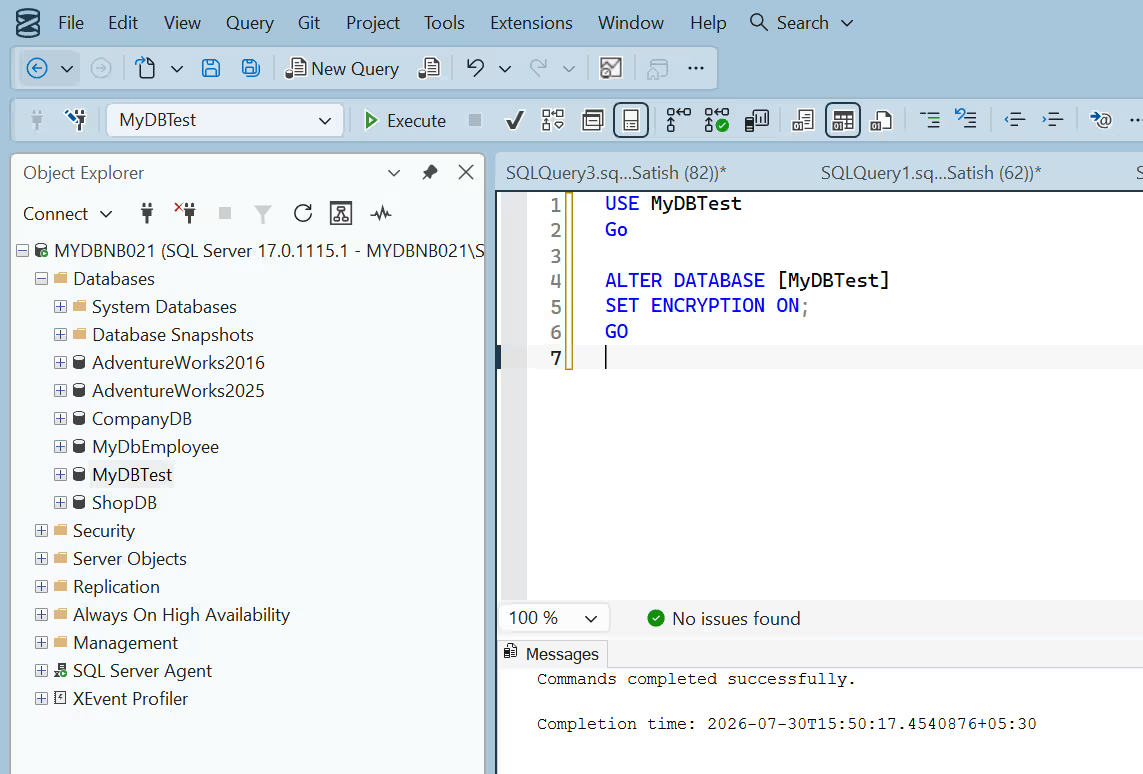
Step 6: Verify Encryption Status
To check whether the encryption scan has completed and verify the current state of encryption, query the sys.databases catalogue view joined with the sys.dm_database_encryption_keys Dynamic Management View (DMV).
SELECT
    db.name,
    db.is_encrypted,
    dm.encryption_state,
    dm.percent_complete,
    dm.key_algorithm,
    dm.key_length
FROM sys.databases db
LEFT OUTER JOIN sys.dm_database_encryption_keys dm
    ON db.database_id = dm.database_id
WHERE db.name = 'MyDBTest';
GO
Interpreting encryption_state Values:
- 0 = No database encryption key present, no encryption
- 1 = Unencrypted
- 2 = Encryption in progress
- 3 = Encrypted
- 4 = Key change in progress
- 5 = Decryption in progress
- 6 = Protection change in progress
Key T-SQL Commands and Functions
Below is a reference summary of T-SQL commands used for managing Database Encryption Keys:
Critical Rule Regarding Certificates
To accept TDE certificates, SQL Server requires them to be protected by a Database Master Key (DMK). If a certificate is protected by a password only, SQL Server will reject it as an encryptor for a DEK.
Furthermore, if a certificate is altered to be password-protected after TDE has been enabled, the database will become completely inaccessible following the next SQL Server instance restart.
Catalogue Views and Dynamic Management Views
SQL Server provides dedicated metadata views to track TDE state and configurations:
Permissions
Viewing metadata associated with TDE requires specific permissions. Viewing certificate information requires the VIEW DEFINITION permission on the relevant certificate.
Operational Considerations and Limitations
Implementing TDE introduces specific administrative rules and constraints that database administrators must manage.
Considerations
- Maintenance During Initial Scans: While an initial encryption scan or re-encryption scan is running, automated maintenance operations on the database are disabled. Single-user mode can be set on the database to perform required maintenance during these windows.
- Read-Only Filegroups: In TDE, all data files and filegroups in a database are encrypted. If any filegroup in a database is marked READ ONLY, the encryption statement will fail.
- High Availability & Replication: In High Availability configurations such as Database Mirroring or Log Shipping, both primary and secondary databases are encrypted. Log transaction records remain encrypted during network transportation between nodes.
- Full-Text Indexes: Full-text indexes are automatically encrypted when a database is encrypted with TDE. Full-text indexes built in SQL Server 2005 or earlier are encrypted when imported into SQL Server 2008 or later.
- Auditing: To monitor changes in TDE configuration, use SQL Server Audit or Azure SQL Database auditing under the audit action group DATABASE_OBJECT_CHANGE_GROUP.
Operations Disallowed During Initial Encryption, Key Change, or Decryption
The following operations cannot be performed while an initial encryption scan, key rotation, or decryption operation is in progress:
- Dropping a file from a database filegroup
- Dropping the database
- Taking the database offline
- Detaching the database
- Transitioning a database or filegroup into a READ ONLY state
Conditions That Prevent Encryption Statements
An ALTER DATABASE ... SET ENCRYPTION command will be blocked if any of the following conditions exist:
- The database is set to Read-only or contains Read-only filegroups.
- Another ALTER DATABASE command is actively running.
- A database data backup is currently executing.
- The database is in an offline or restore state.
- A database snapshot exists or is currently being created.
- Active database maintenance tasks are running.
Additional Technical Limitations
- Instant File Initialization: When TDE is enabled on a database, Instant File Initialization (IFI) is unavailable during new database file creation or growth events.
- Extensible Key Management (EKM): To encrypt a DEK using an asymmetric key, that key must reside on an Extensible Key Management (EKM) provider.
Summary
Transparent Data Encryption (TDE) provides an effective, storage-level mechanism for protecting data at rest in SQL Server. Because encryption and decryption occur at the I/O layer without requiring changes to application code, TDE can be deployed with minimal impact on application design. Managing its key hierarchy, understanding DMV metadata, and planning around operational limitations ensures that database administrators maintain a secure and compliant database environment.
For further reading on SQL Server security and database architecture, review our technical guides on Parameter Sensitive Plan (PSP) Issues in SQL Server and Contained Always On Availability Groups in SQL Server 2022. If you manage multi-engine deployments, explore our detailed guides on MySQL Data at Rest Architecture and PostgreSQL Database Hardening Best Practices.
Official reference documentation on encryption hierarchy is available via the Microsoft SQL Server TDE Documentation.
Need Expert Assistance Securing Your Database Infrastructure?
Mydbops provides end-to-end database management, security audits, and compliance configurations across SQL Server, MySQL, PostgreSQL, and MongoDB environments. Whether you are setting up TDE, managing key rotations, or optimizing high-availability database architectures, our senior DBAs are ready to help.

_%20How%20MySQL%2026.7%20Fixes%20Replication%20Lag%20(1).avif)
_%20How%20MySQL%2026.7%20Fixes%20Replication%20Lag.avif)
.avif)

.avif)



.svg)
